Kleinwood church of Christ Member Account Setup Guide
Kleinwood church of Christ Member Account Setup Guide
READ ALL OF THESE INSTRUCTIONS BEFORE REGISTERING FOR YOUR ACCOUNT
Your step-by-step instructions to register, secure your account, and add your family.
Tip: Use a Desktop, Laptop, or Tablet (not your phone)
To make it easier to set up Two-Factor Authentication in the next step, it’s best to register on a separate device from your phone (such as a computer or tablet).
That way, your phone will be free to download and use the Authenticator App during setup.
Step 1: Start the Registration Process
-
Visit our REGISTRATION PAGE
Step 2: Complete the Registration Form
-
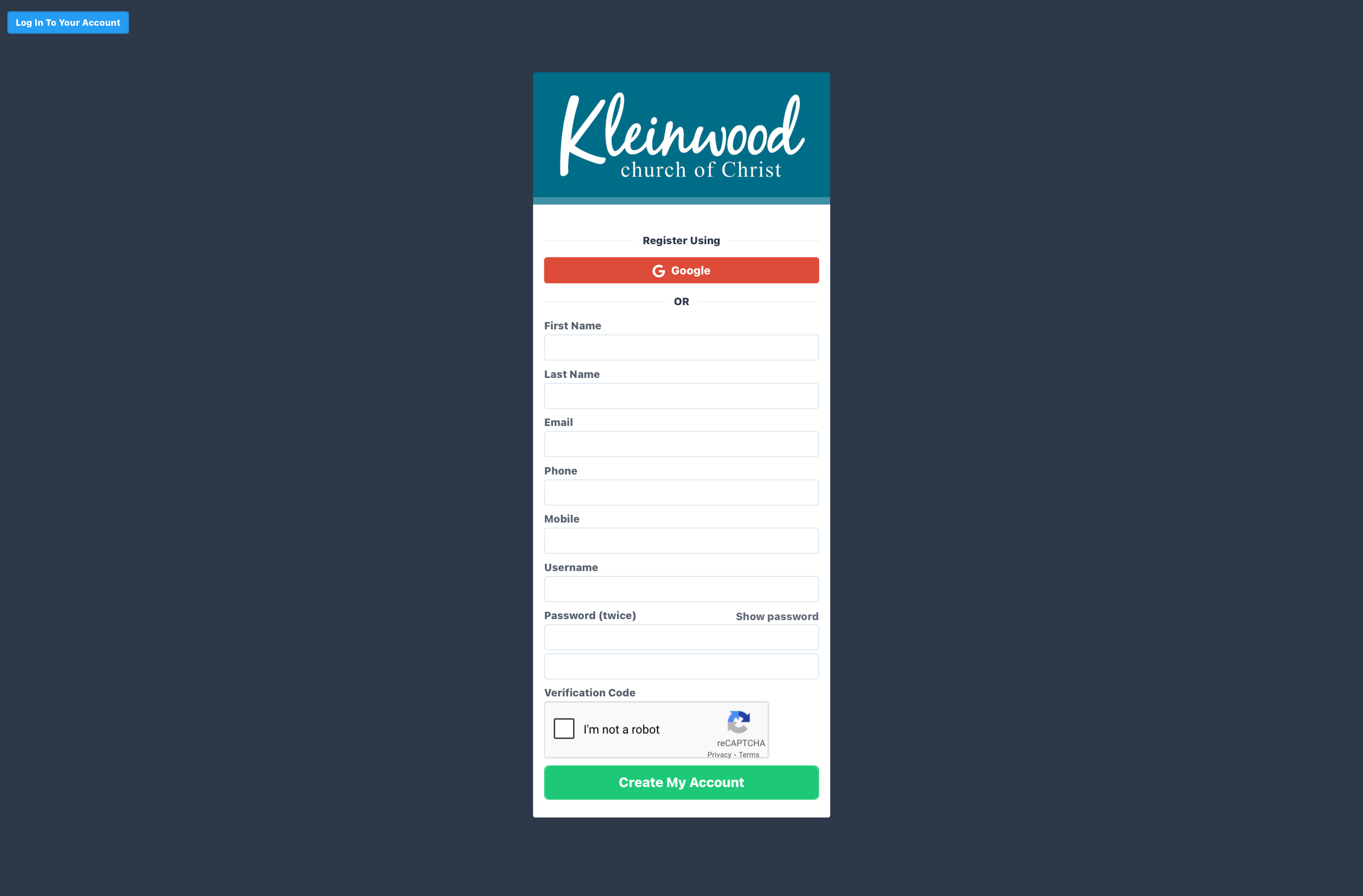
Fill out the form:
-
First Name, Last Name
-
Email Address
-
Phone and Mobile Numbers
-
Username
-
Password (entered twice)
-
Complete the CAPTCHA checkbox
-
Click “Create My Account”
Step 3: Set Up and Secure Your Account
A. Complete Your Profile
-
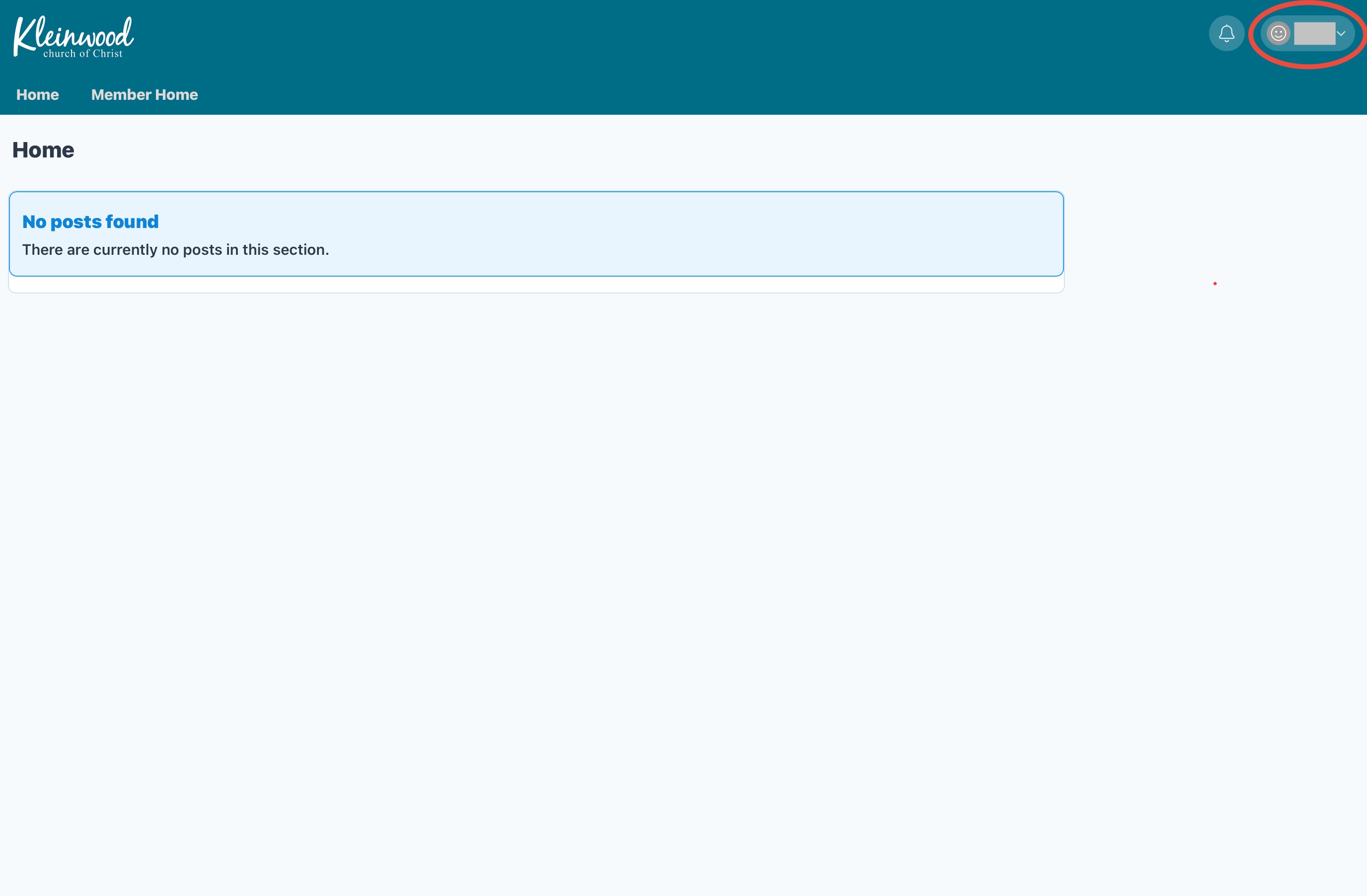
Click your profile icon in the top-right corner
-
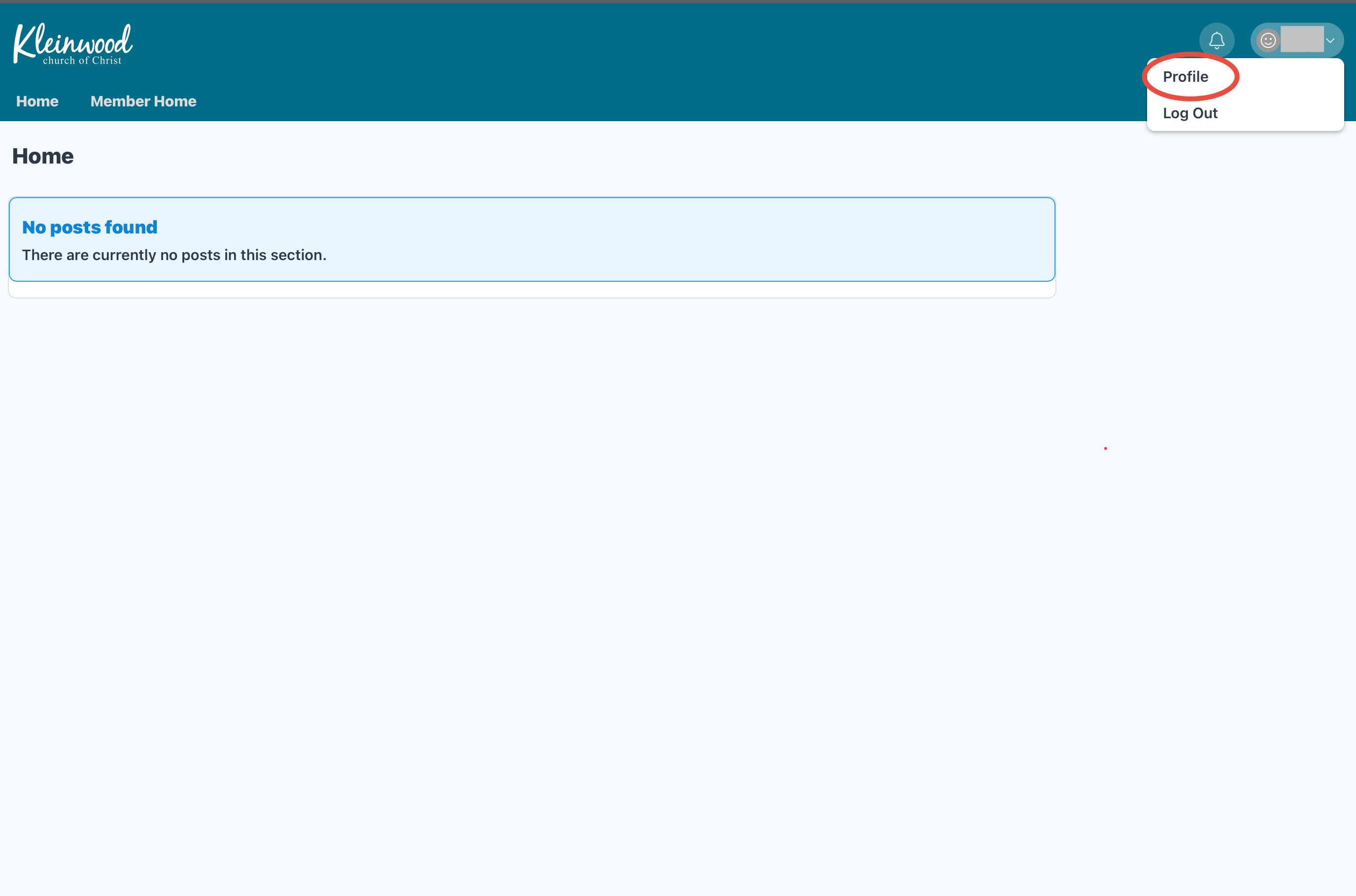
Select “Profile”
-
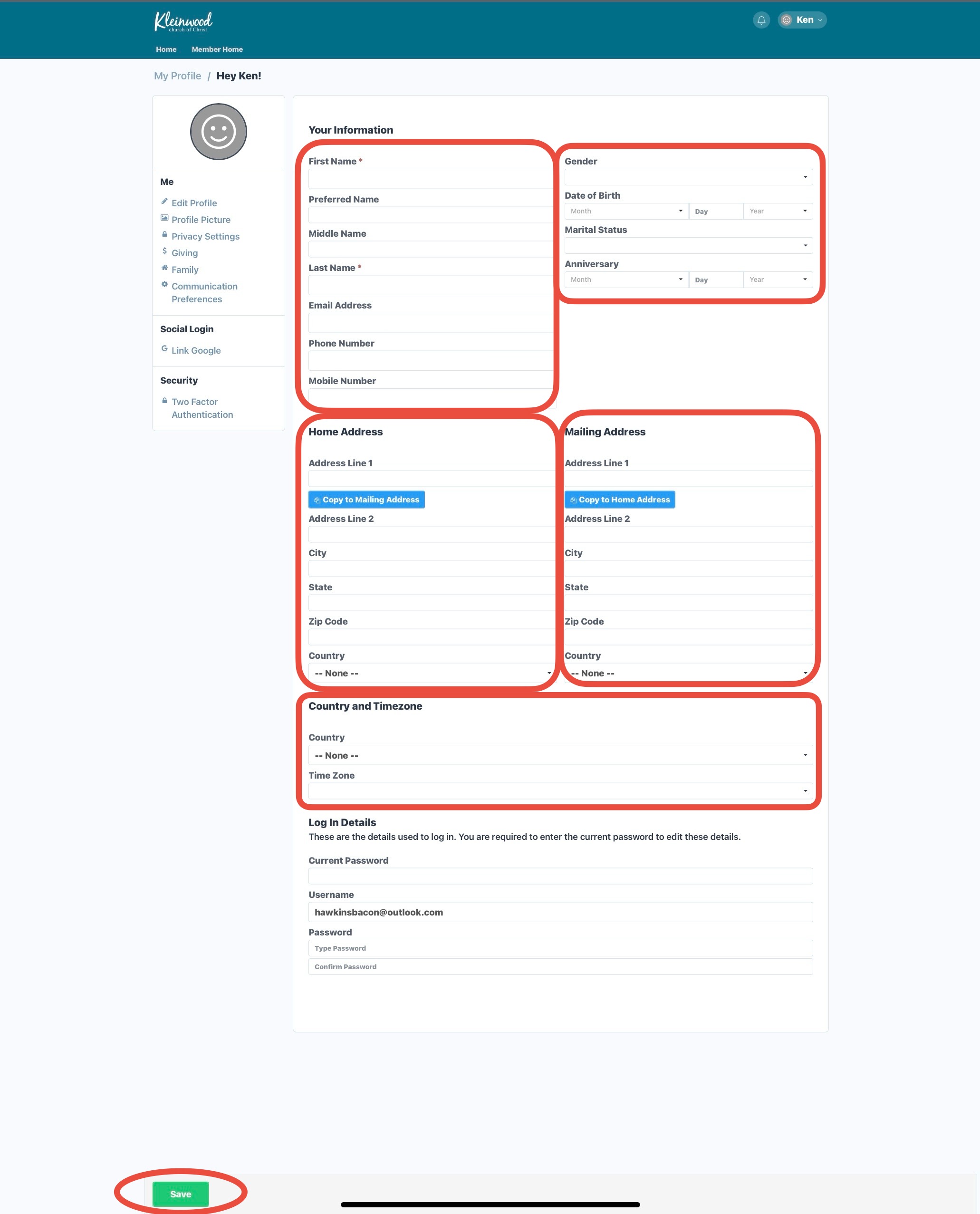
Fill in your personal information:
-
Name, Gender, Date of Birth, Marital Status, Anniversary
-
Email and Phone
-
Home and Mailing Address
-
Country and Time Zone
-
Click the green “Save” button
B. Set Up Two-Factor Authentication (2FA)
What You Need:
-
A smartphone
-
An Authenticator App (like Google Authenticator or Microsoft Authenticator)
-
Download it free from the App Store (iOS) or Google Play Store (Android)
-
Optional: You can use the 2FA feature that comes with the built-in password app on your mobile device
Why You Should Set It Up:
2FA protects your account by requiring both your password and a one-time code from your phone.
Bonus: Use Your Phone’s Built-In Password Manager
When creating your password or saving your login info:
For iPhone/iPad (iOS):
-
Safari will suggest strong passwords and save them in iCloud Keychain
-
Tap “Use Strong Password” or “Save Password” when prompted
-
To view later: Go to Settings > Passwords
For Android Devices:
-
Chrome or the Google app will offer to save your password to Google Password Manager
-
Tap “Save” when prompted
-
To manage later: Go to Settings > Google > Autofill > Passwords
Tip: You can also install apps like 1Password, Dashlane, or NordPass for advanced password management.
C. Enable 2FA
-
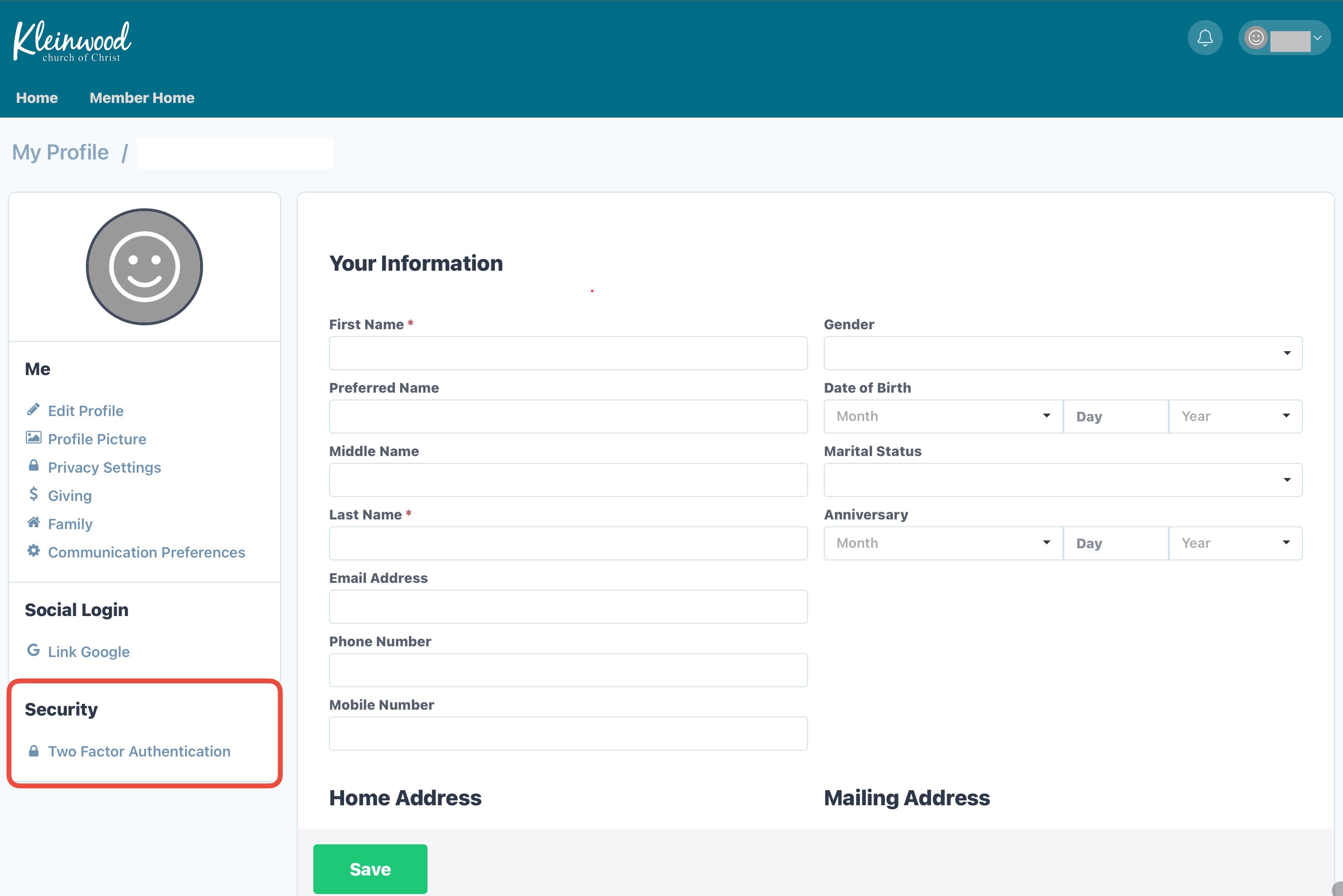
In your profile sidebar, click “Two Factor Authentication”
-
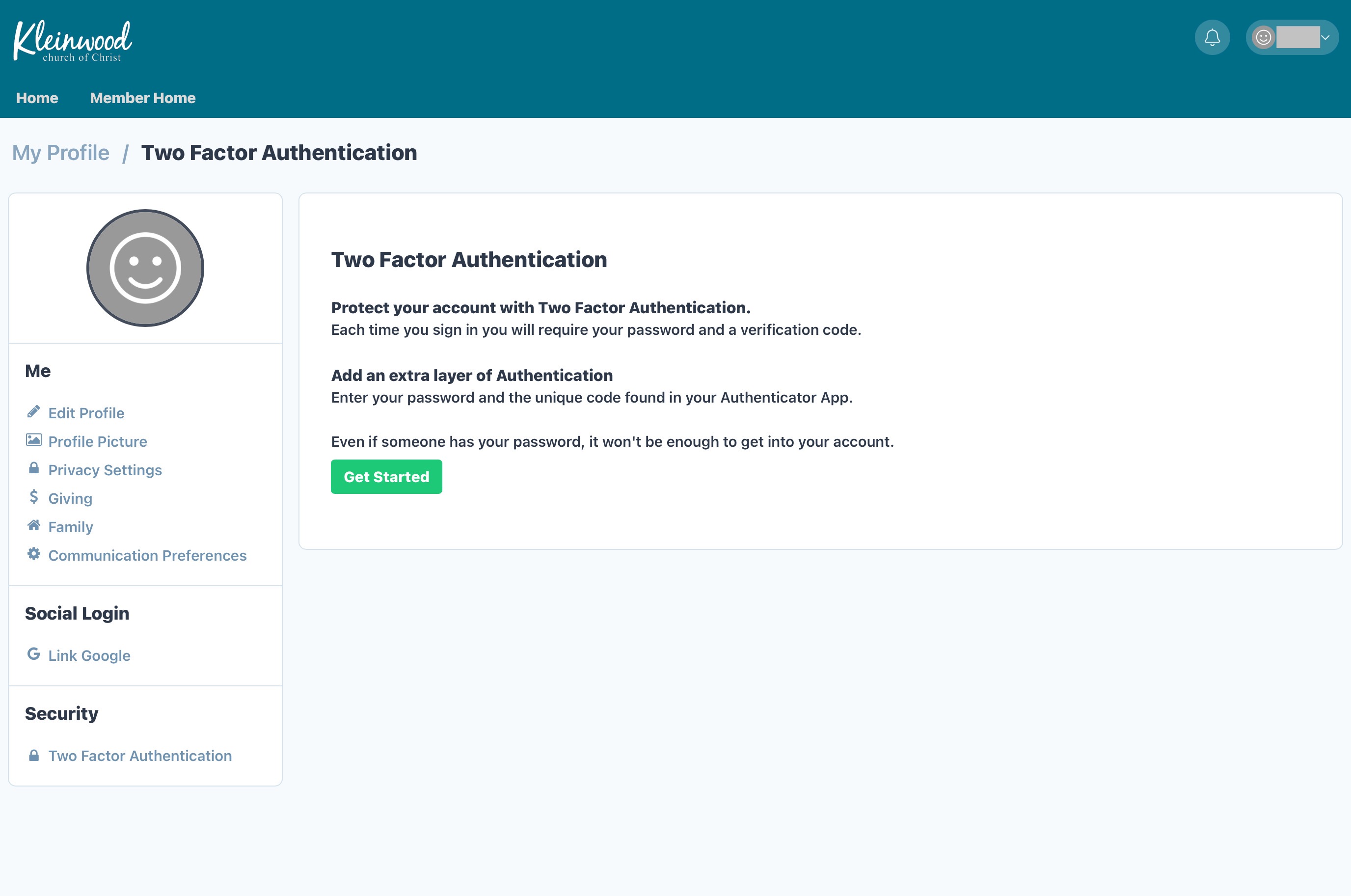
Click “Get Started”
-
On your phone:
-
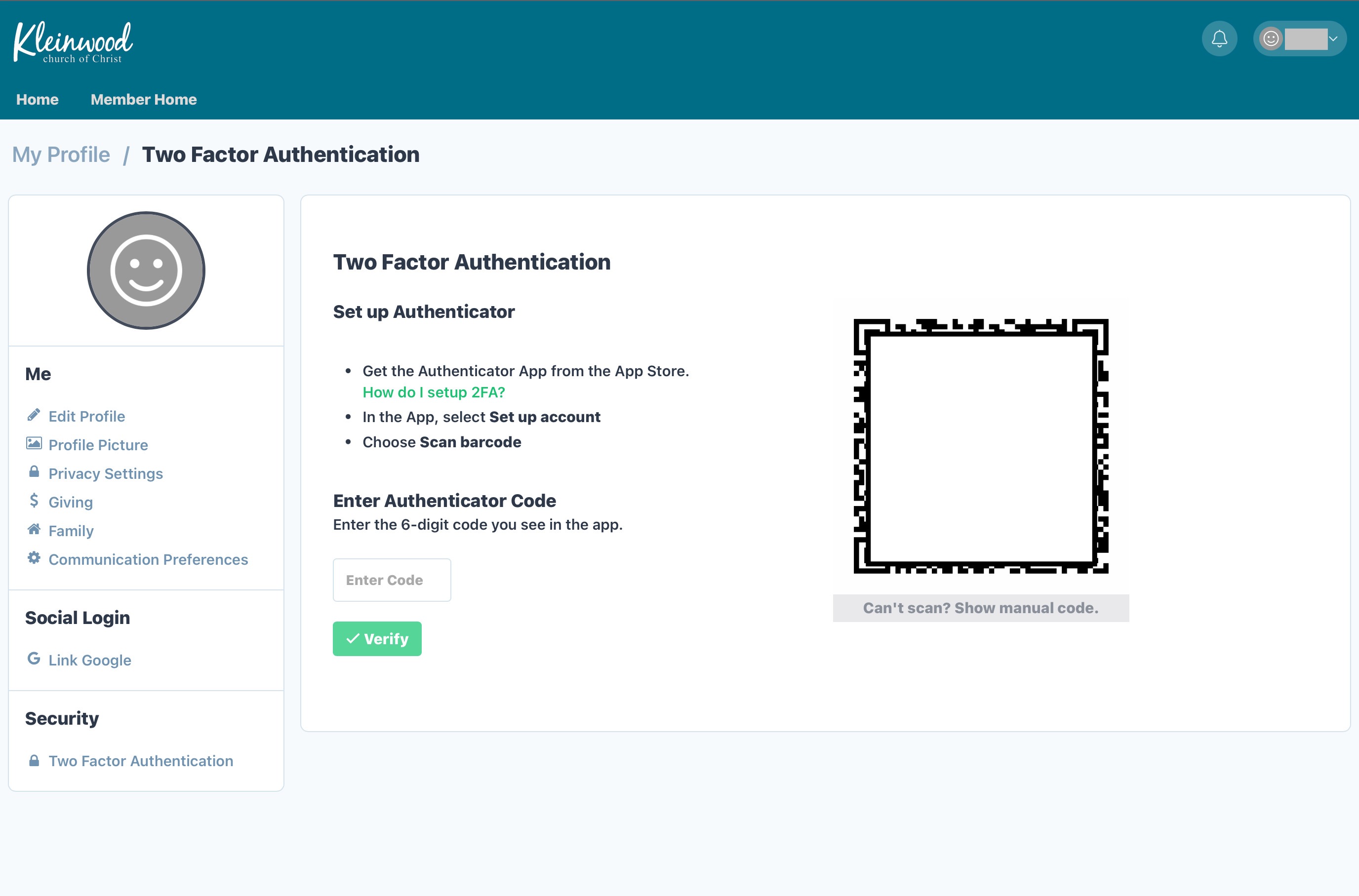
Open the Authenticator App
-
Tap “+” to add a new account
-
Select Scan QR Code
-
Use your phone to scan the code shown on your computer/tablet screen
-
Your app will display a 6-digit code that changes every 30 seconds
-
Enter that code on the website
-
Click “Verify”
Step 4: Add Your Profile Picture
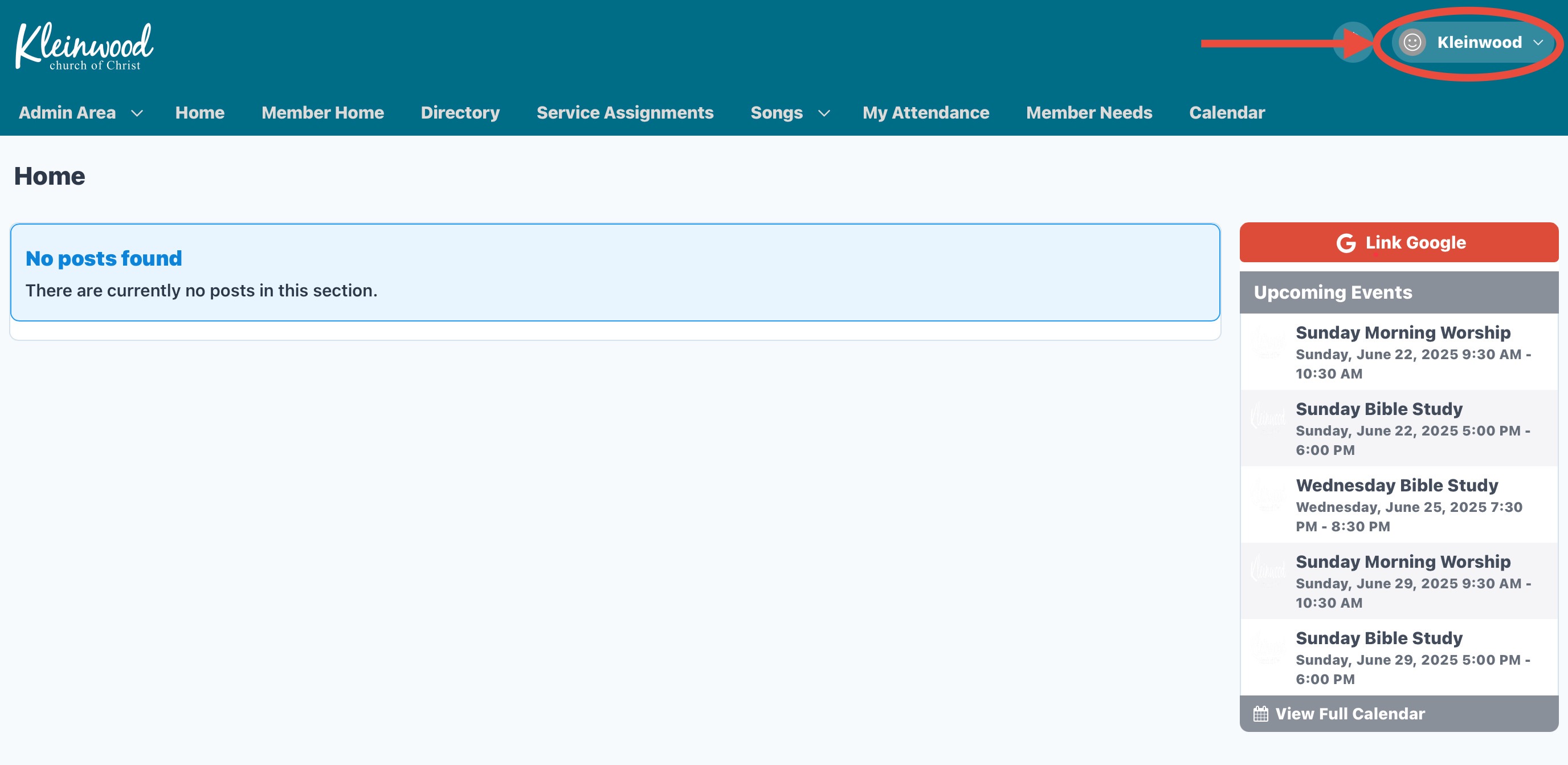
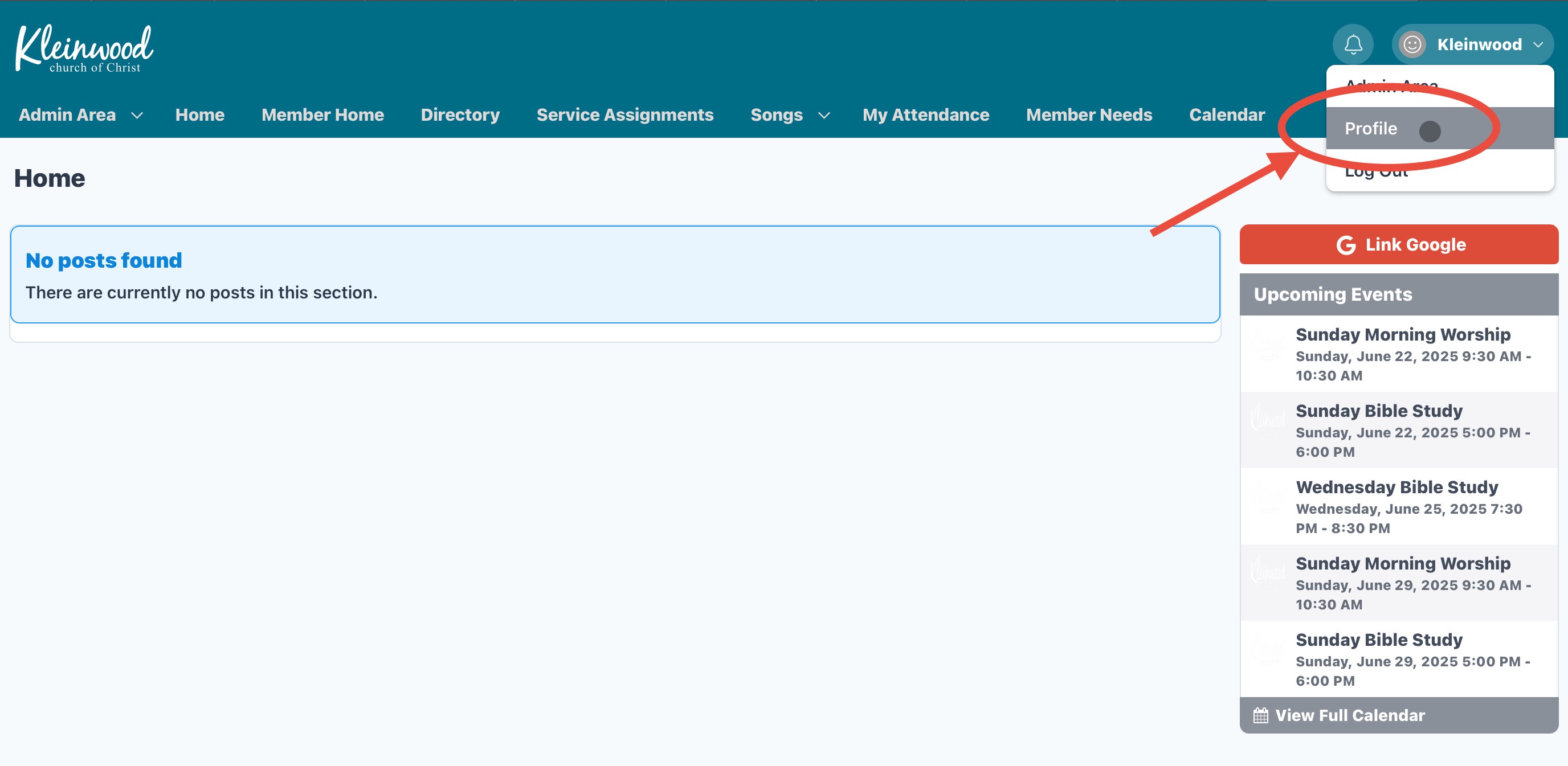
1: Open the Profile Menu
-
-
Click your name in the top right corner of the screen.
-
2: Select “Profile”
-
-
In the dropdown menu, click “Profile”.
-
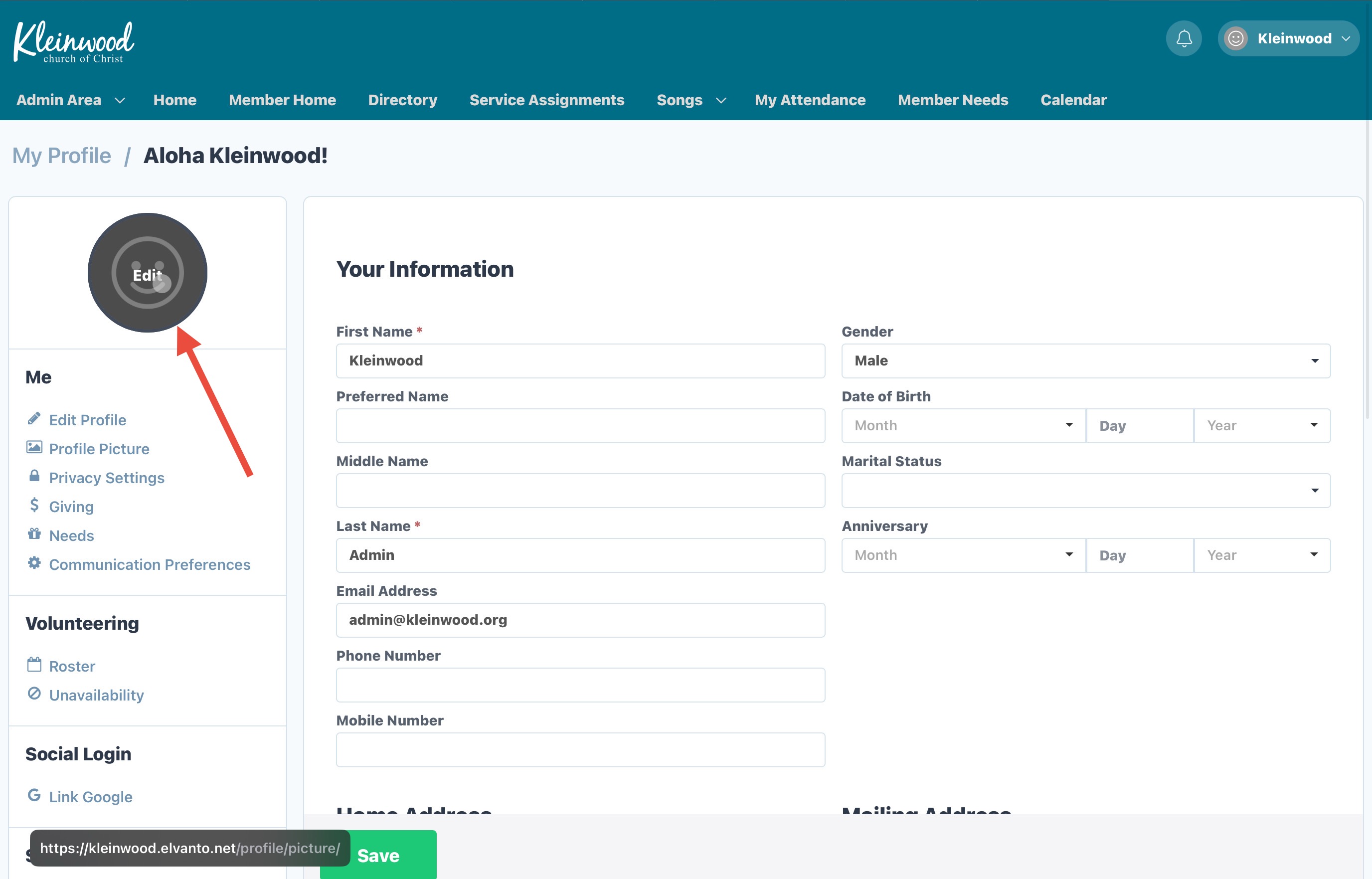
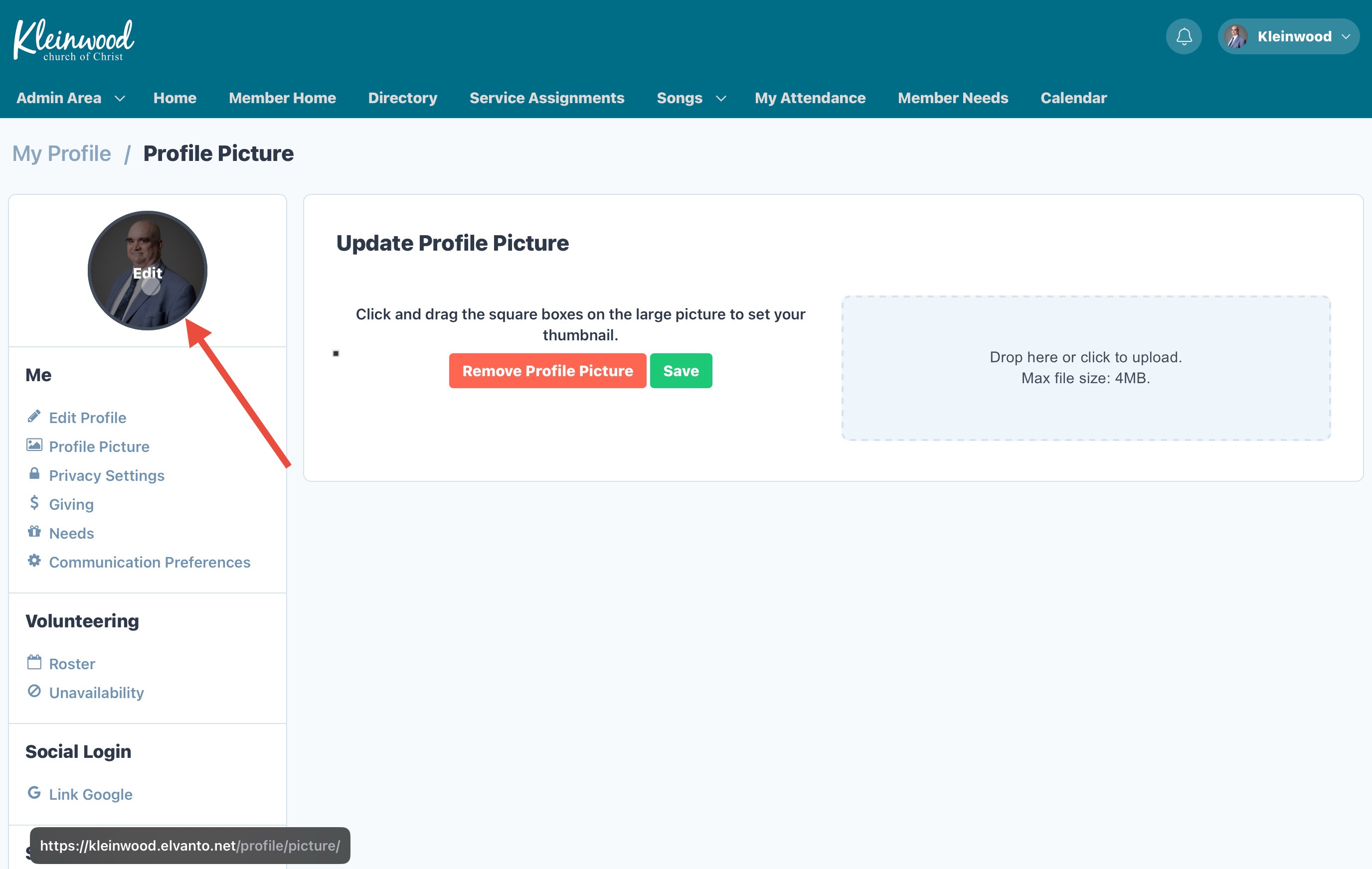
3: Click the Profile Picture “Edit” Button
-
-
On the profile page, click the “Edit” button on your profile picture.
-
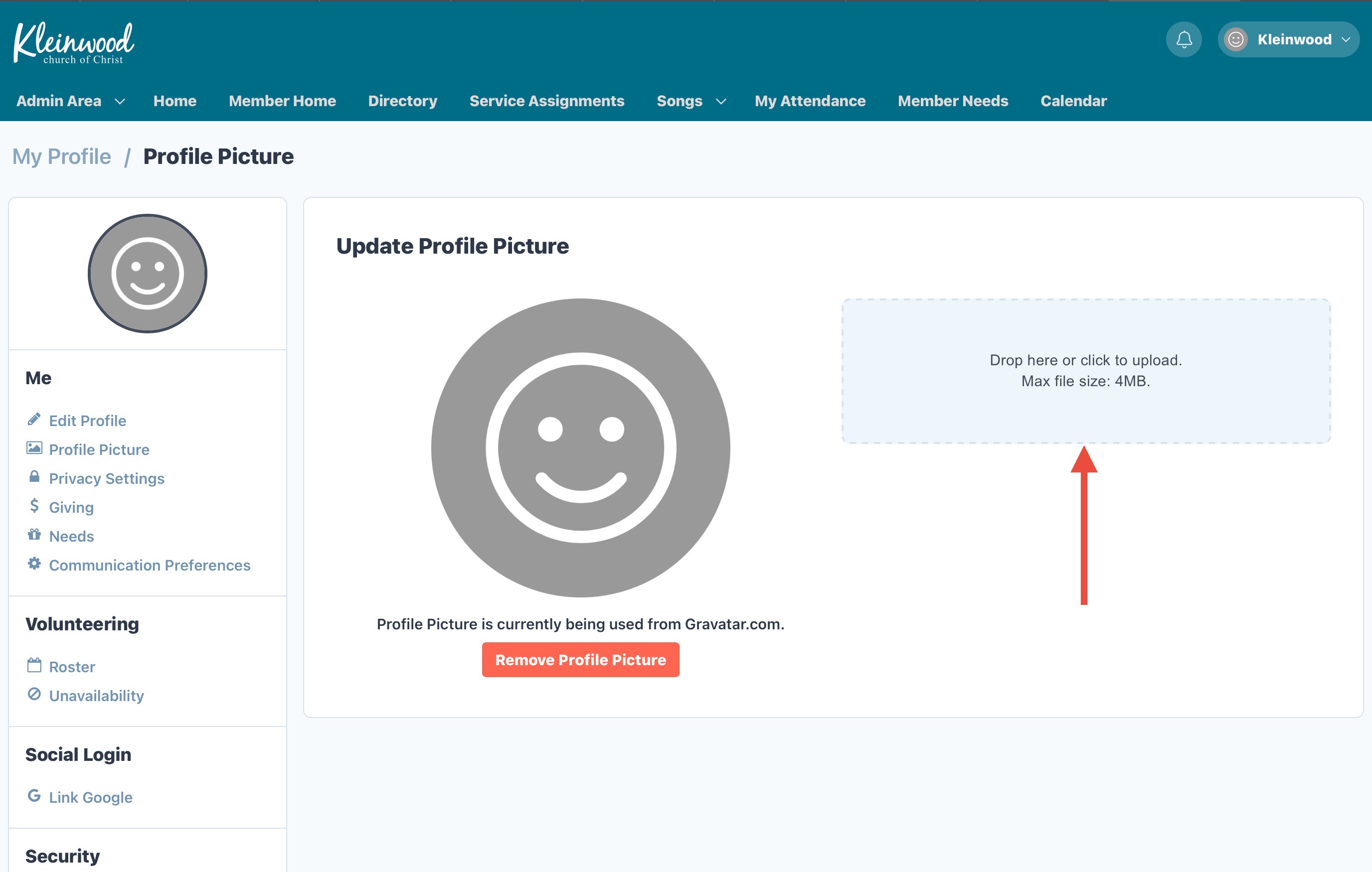
4: Choose Upload Method
-
-
Click the gray upload box on the right.
-
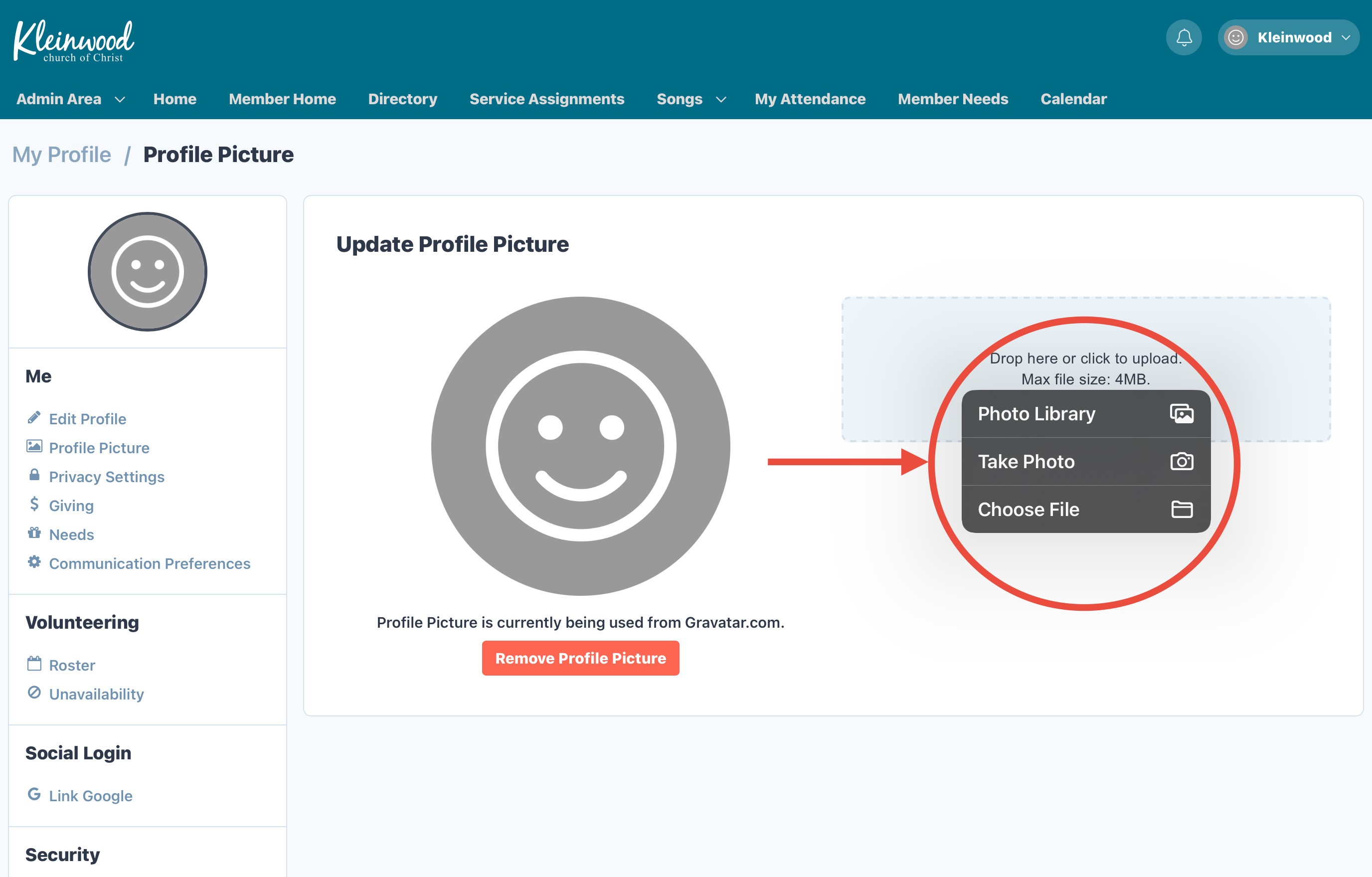
Select how you want to upload:
-
Photo Library (choose from your device)
-
Take Photo (use your camera)
-
Choose File (upload from file explorer)
-
-
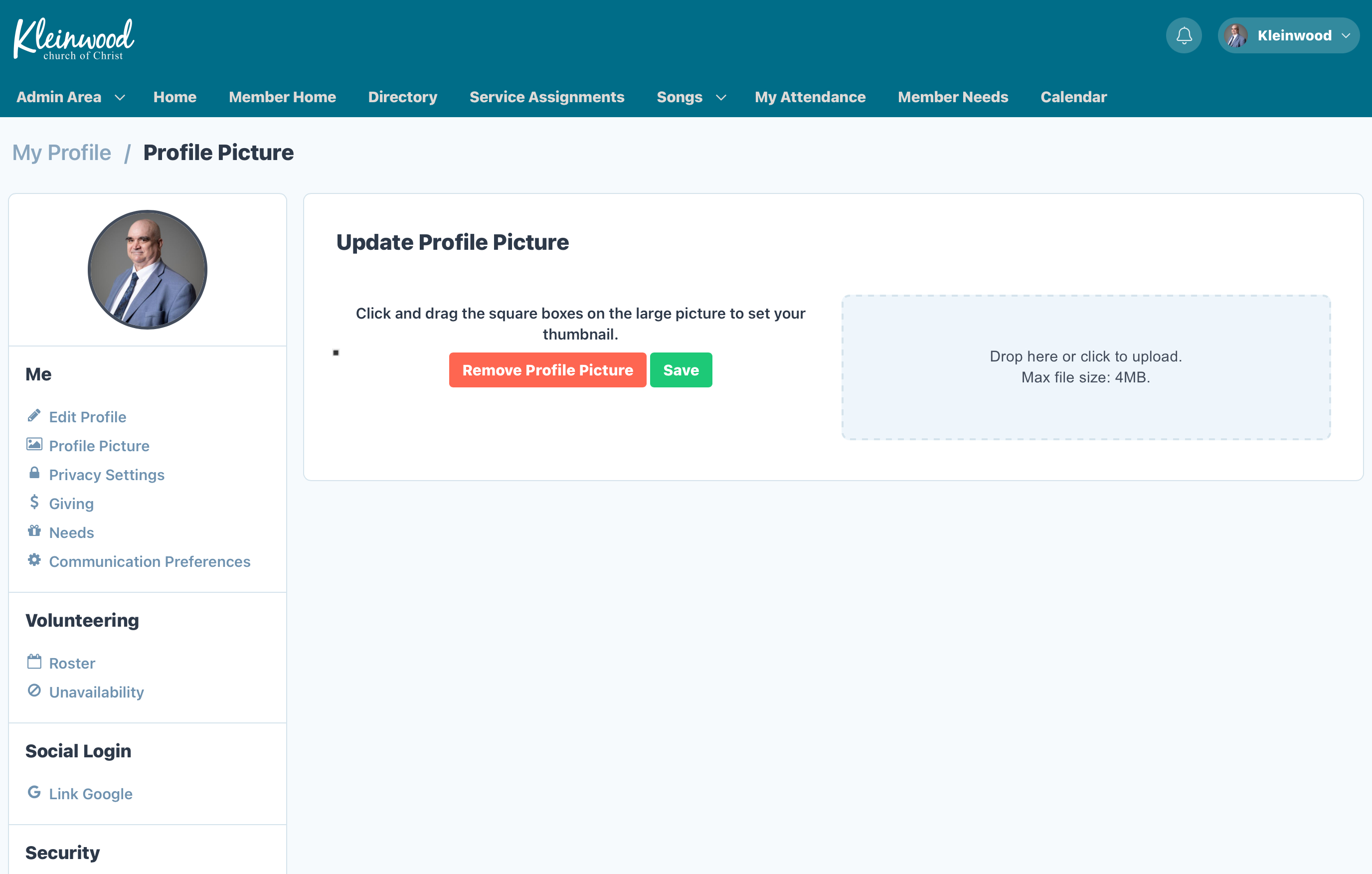
5: Upload and Adjust
-
-
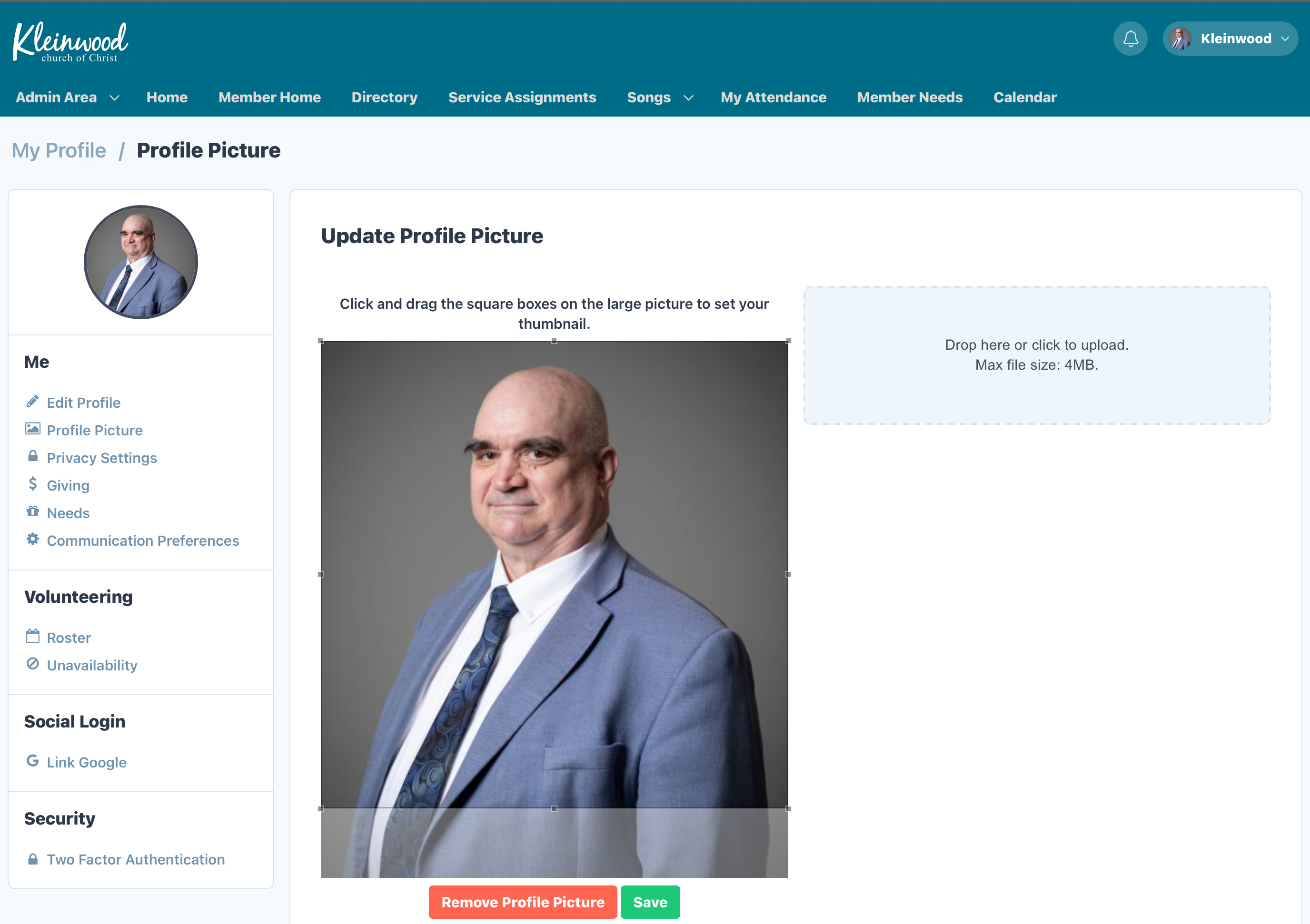
Your photo will upload and appear in preview.
-
Use the square handles to crop or reposition your image if needed.
-
6: Save Your Picture
-
-
Click the green “Save” button.
-
A confirmation message will appear at the top of the screen:
“Picture has been saved successfully!”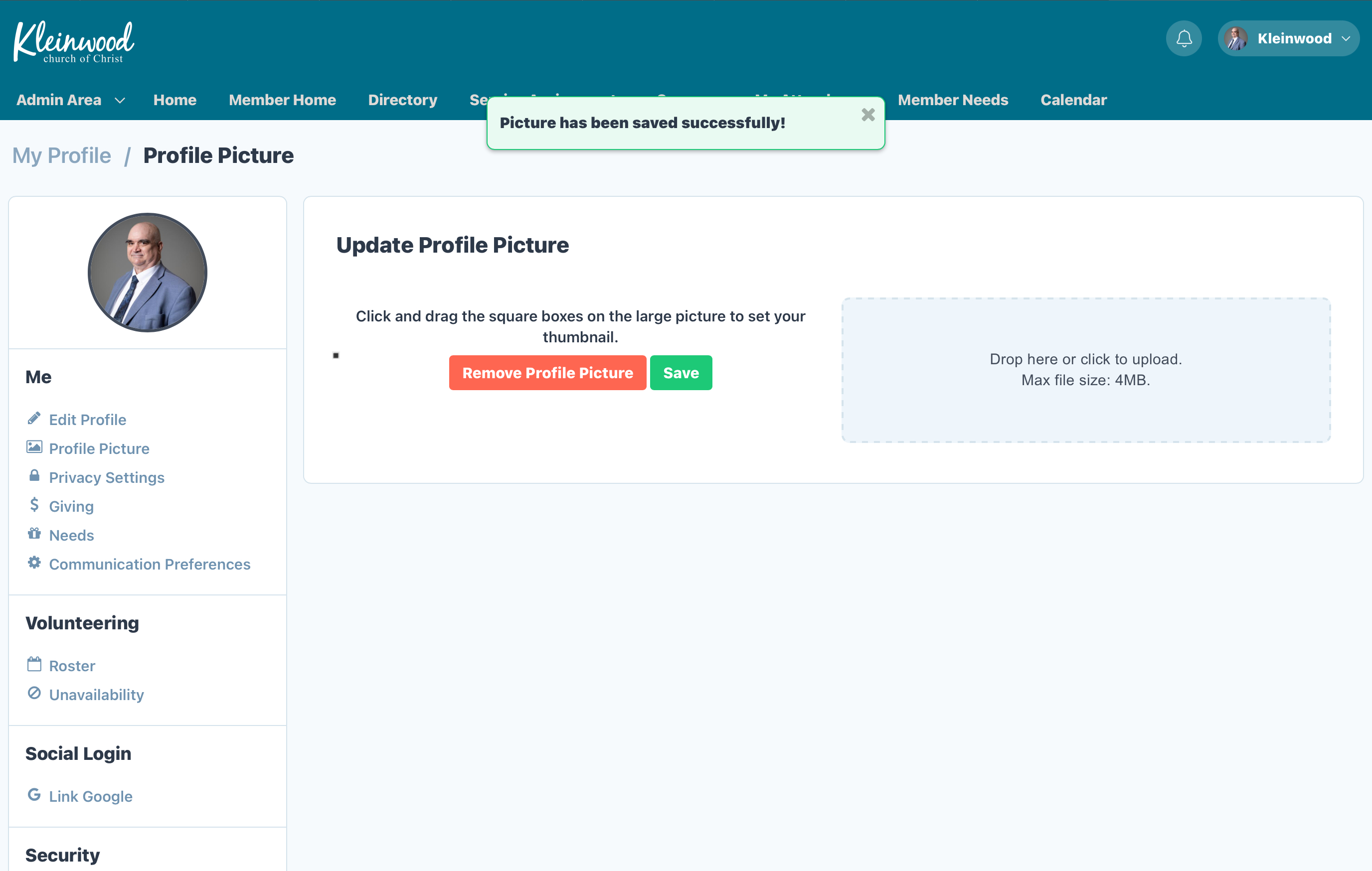
-
Final Result
-
-
Your new profile picture is now updated!
-
Step 5: Add Family Members
A. Open the Family Section
-
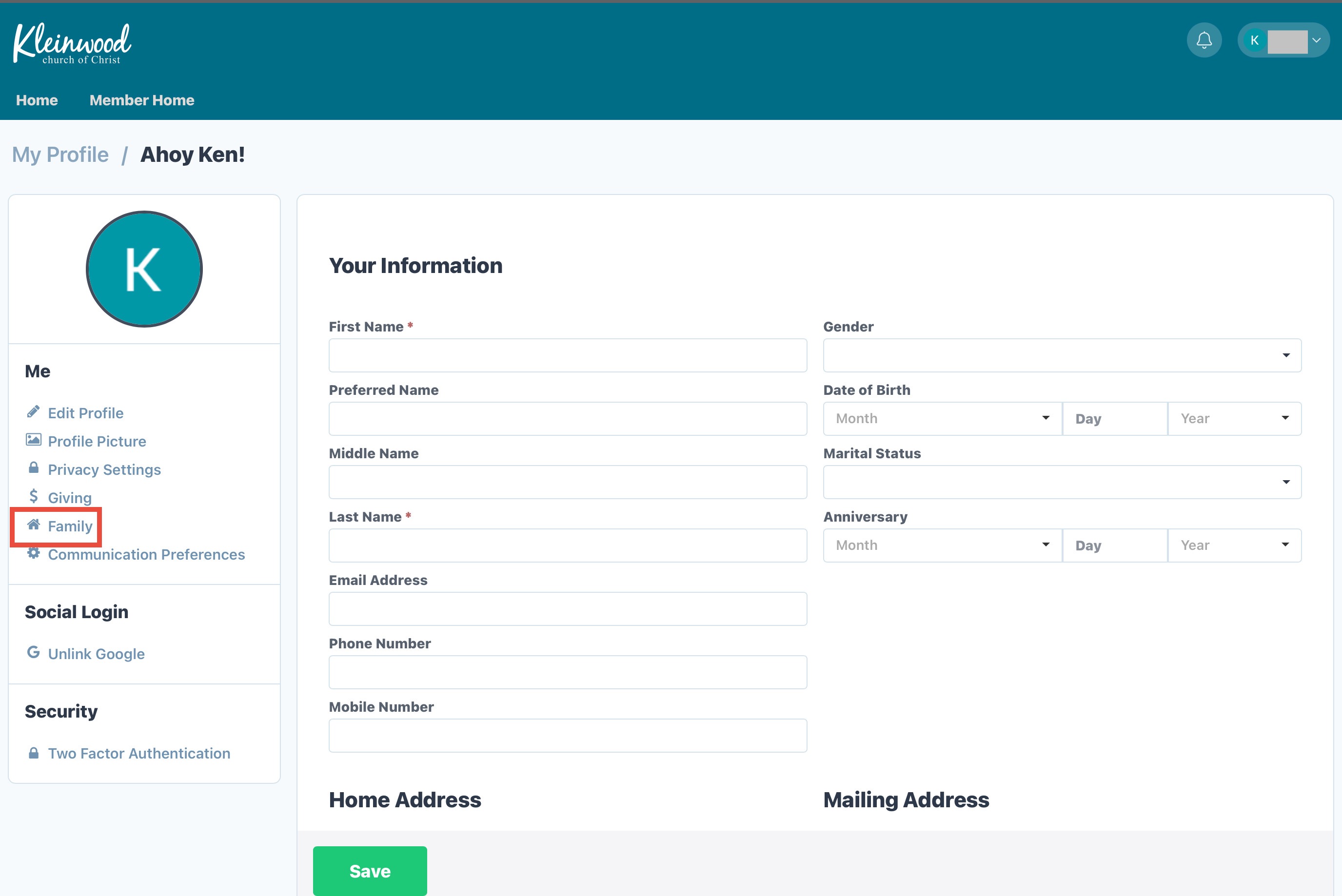
In your profile sidebar, click “Family”
B. Add a New Family Member
-
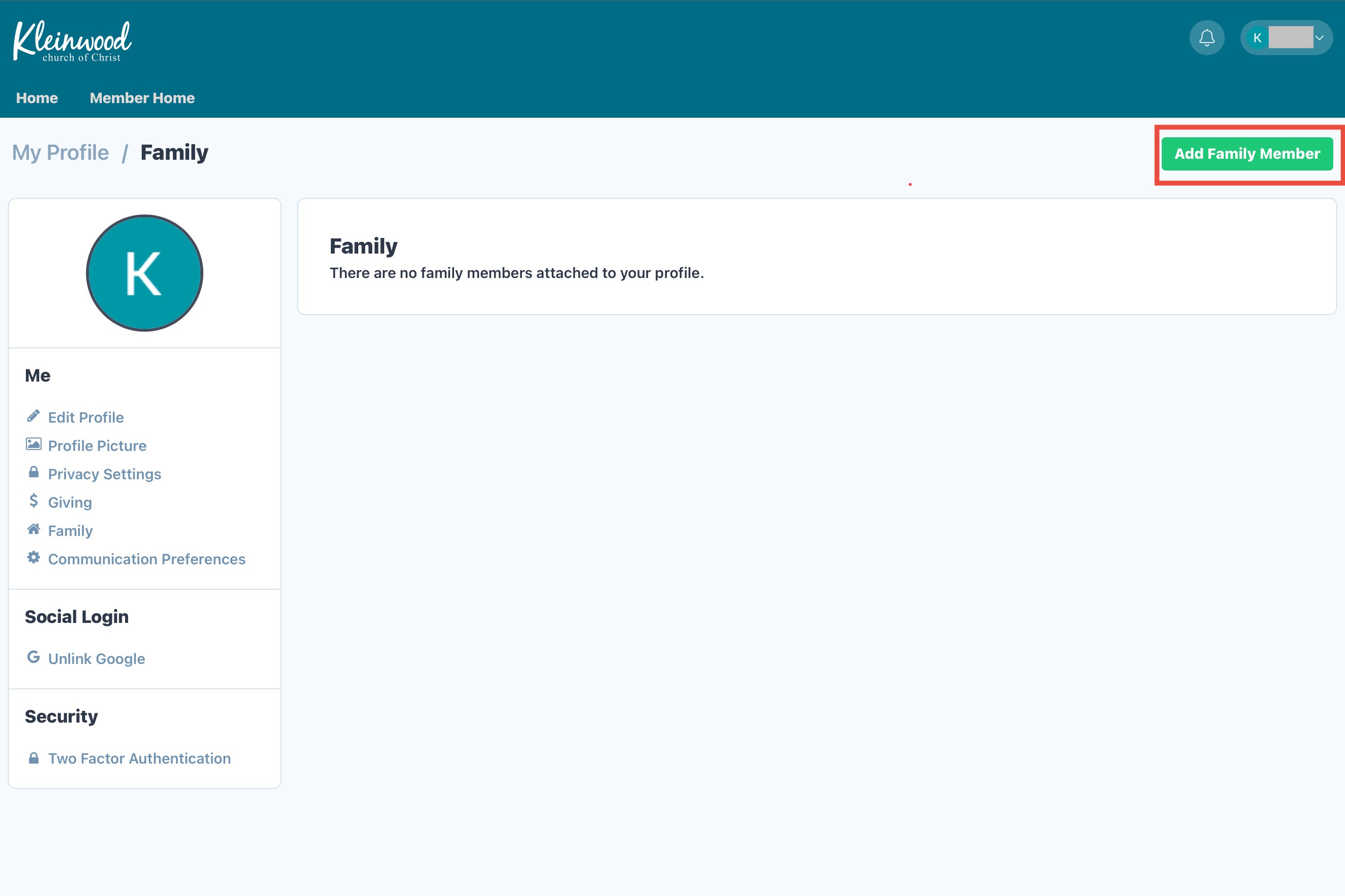
Click the green “Add Family Member” button
-
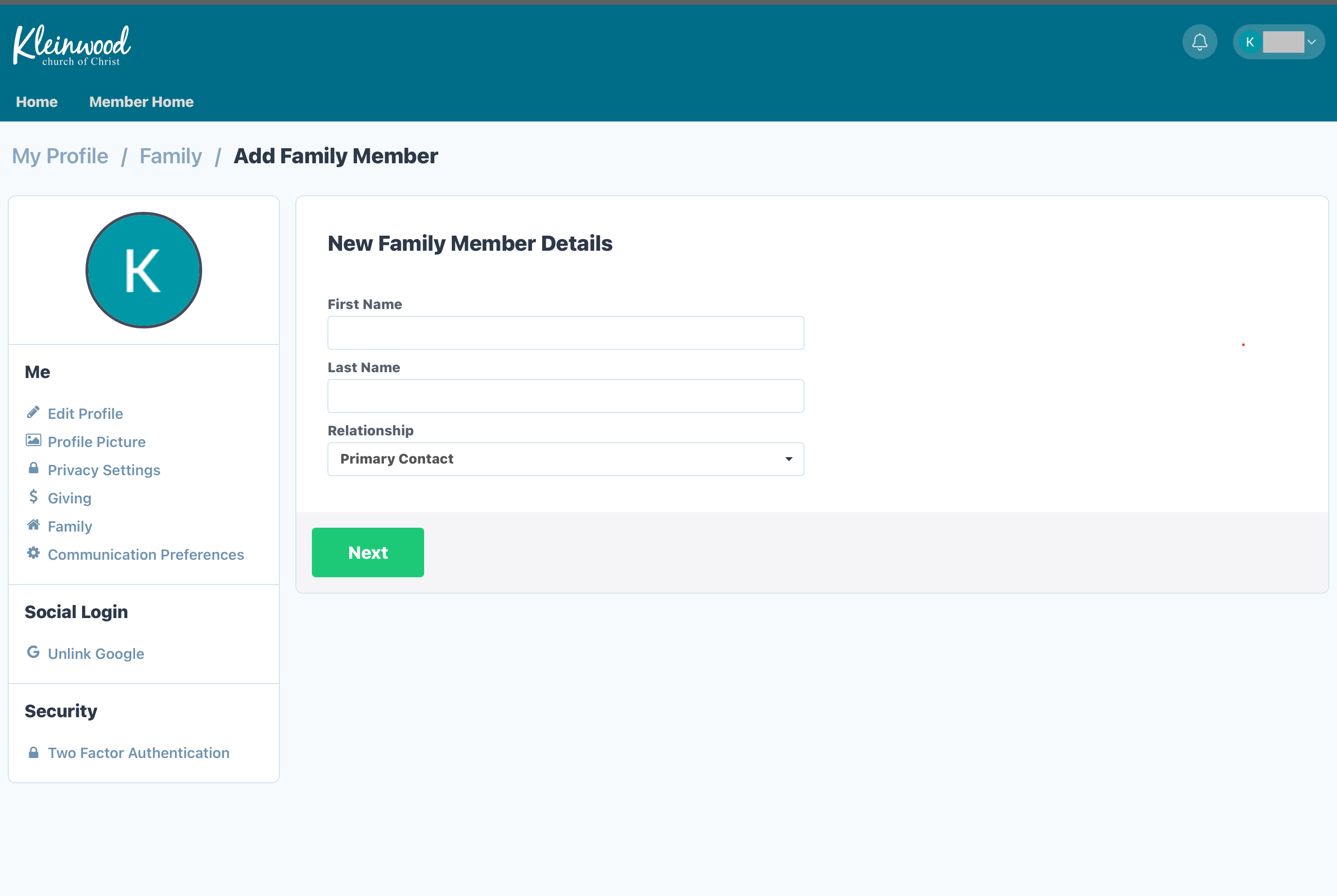
Enter:
-
First Name, Last Name
-
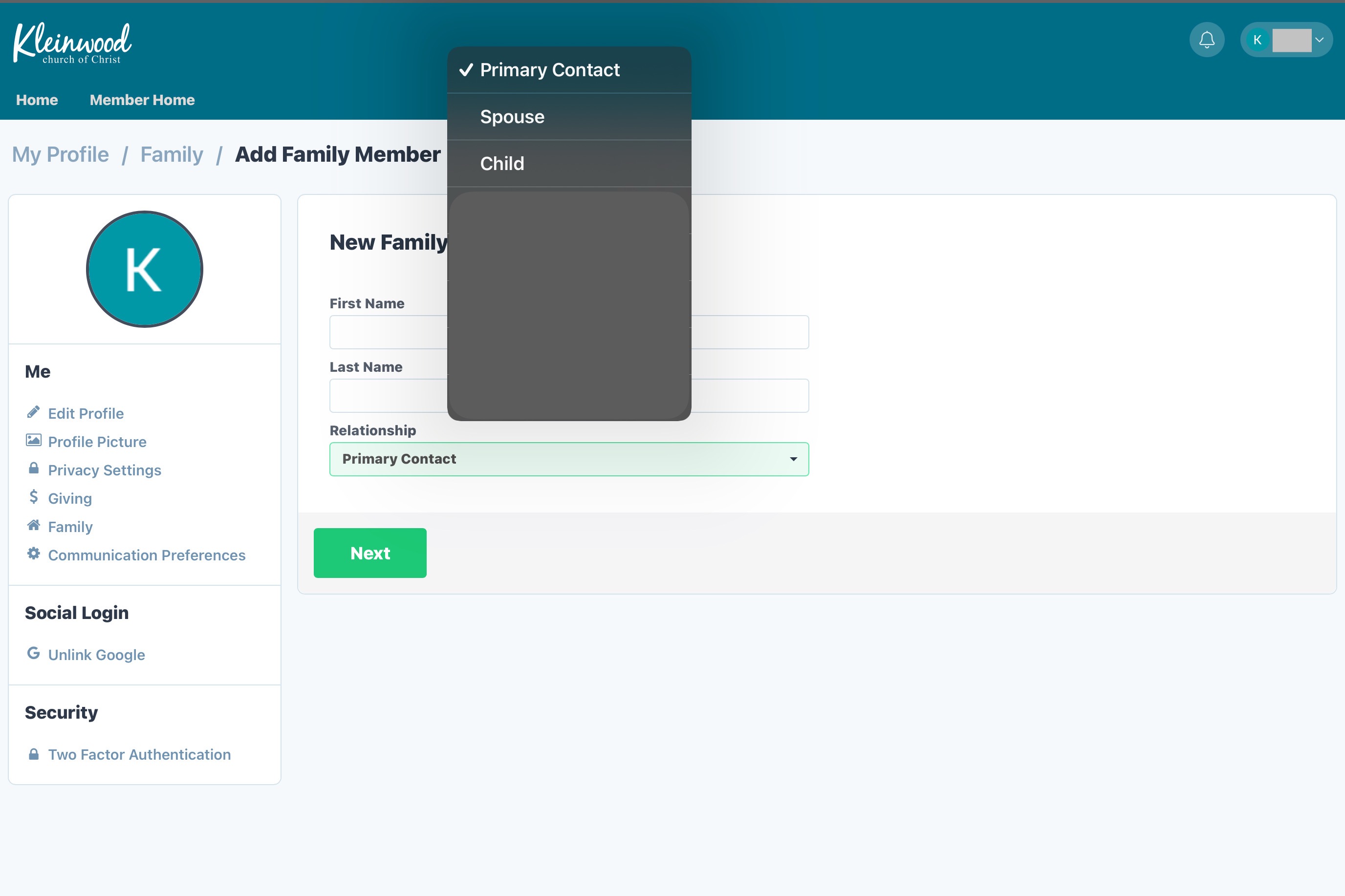
Relationship (Spouse, or Child)
-
Click Next
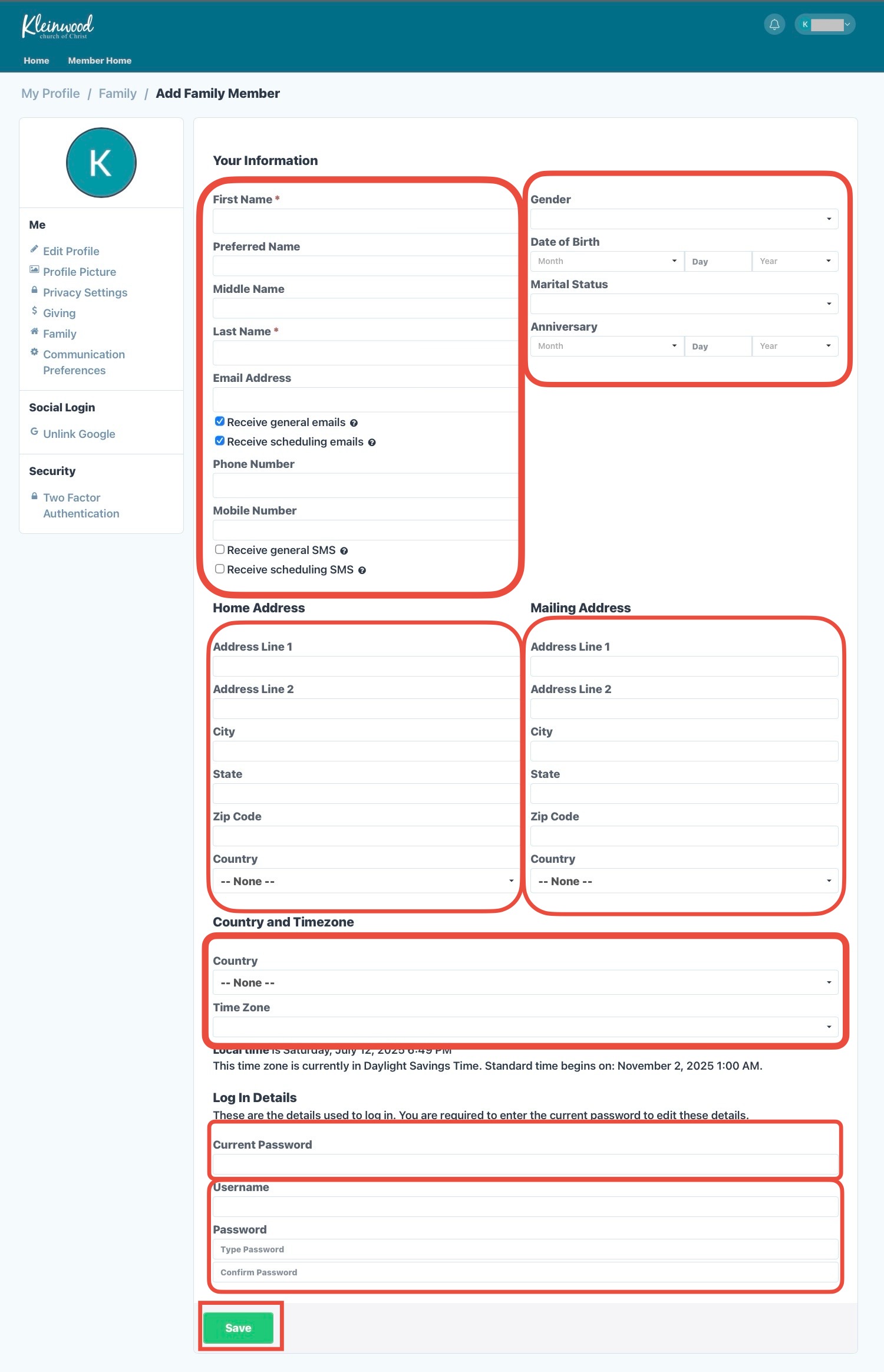
C. Fill Out Their Full Profile
-
Enter their:
-
Gender, DOB, Marital Status, Contact Info
-
Home & Mailing Address
-
Notification Preferences (email, text)
-
Time Zone & Country
-
D. Set Up Their Login Credentials
To give the family member access to their own login:
-
Scroll to the Log In Details section
-
Enter:
-
Current Password → This is your password (the main account holder) to authorize the change
-
Username → Create a new username for the family member
-
Password → Set a new password for the family member (entered twice)
You can use your device’s password manager here too (see tips above)
- Click the green Save button
You’re All Set!
You’ve now:
- Created your account
- Secured it with 2FA
- Added family members and created optional logins for them